How to install and configure TASM on Windows 7/8/10.
Before we get started with TASM installation on Windows machine, let’s get some knowledge about TASM and learn what it will do for us.
Turbo Assembler (TASM) a small 16-bit computer program which enables us to write 16 bit i.e. x86 programming code on 32-bit machine. It can be used with any high level language compliers like GCC compiler set to build object files. So that programmers can use their daily routine machines to write 16-bit code and execute on x86 devices.
So let get started with installation steps. Before we get started to make sure that you have following software. If not, you can download it by clicking on it.
Requirements.
1. First, install DOSBox software on your system.

2. Just run the downloaded setup file to install as just like other software’s you install.

3. Then extract the TASM zip file.
4. After that copy that extracted the folder to C drive of your system.

5. Now we have to mount our C drive to DosBox so that we can use our TASM libraries there.
6. To do that go to the following path on your PC
For 32-bit PCC:\Program Files\DOSBOX-0.74For 64-bit PCC:\Program Files (x86) \DOSBOX-0.74
7. Then there you will see a file named as “DOSBOX 0.74 Options” click on it to open.

8. It will open a text file in notepad. Then navigate to the last line of that file where it shows “# You can put your MOUNT lines here”.

9. Add following lines after that.
mount c c://tasmc://
10. And save that file.

11. And now open DOSBOX. You’re done.
12. To run a TASM program copy your program file into TASM folder which is under your C: drive.
12. To run a TASM program copy your program file into TASM folder which is under your C: drive.

13. And now open DOSBOX. And navigate to TASM folder by typing cd TASM and hit enter.
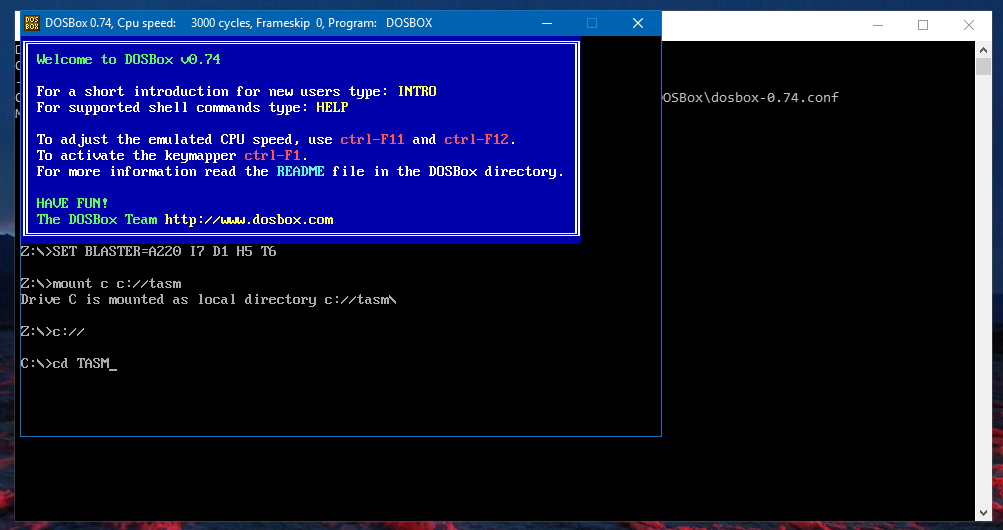
14. Now type tasm <program_name>. Replace <program_name> with your actual program name. in my case, my program name is the timer so I will type tasm timer.asm

15. After you hit enter. You will see an error, warning messages. If there isn’t anything wrong with your program syntactically, you will see none there.

16. And now link your program to that type tlink <program_name> and hit enter. And now execute program by typing <program_name> only.
17. The program will start executing. To stop execution type exit and hit enter.
17. The program will start executing. To stop execution type exit and hit enter.
So in this way you can install TASM on your system and execute x86 code on your machine. This tutorial is applicable to Windows 7/8/8.1/10.
If you face any problem while doing this, make sure that you hit comment below with your problem.
Source:
Linki:
Blogging about the development of 8-Bit games for Sinclair machines, in assembler
zx spectrum assembler:
z80 asembler page:
programowanie na zx81
instrukcja spectrum
Niniejszy artykuł jest tłumaczeniem kultowej pozycji dla ZX Spectrum "The Complete ZX Spectrum ROM Disassembly". Opisuje ona szczegółowo z komentarzami instrukcje programu w języku maszynowym, który jest zawarty w pamięci ROM ZX Spectrum. Dzięki temu jest doskonałym źródłem informacji o programowaniu mikroprocesora Z80, który był stosowany w tym komputerze. Dzisiaj jest to dzieło historyczne i dlatego warte umieszczenia w dziale retro.
Emulatory:
Mac:
NEXT
Z80 Assembly programming for the Spectrum Next
forum nexta, Z88DK C+Z80 Development Tools:
git z88dk: https://github.com/z88dk/z88dk
SPRITE Editor:
YOUTUBE
Spectrum Next Programming - Recolor the ULA and Low Res Mode (Radasjimian) - Lesson P44
strona:
ma też inne filmy o programowaniu z80 czy spectruma:
PC
programowanie komputerów IBM-PC w asemblerze MASM w środowisku Windows